5. Preview and export
5.1 Switch to preview
Section titled “5.1 Switch to preview”Click Aperçu (Preview — the eye) in the toolbar: the document is shown as it will be printed, page by page. Click Modifier (Edit — the pencil) to go back to writing.
The standard preview is free. The Aperçu IA (AI preview) option (in the settings) asks artificial intelligence to rebuild the document’s layout, as close as possible to the original for an imported document; it is charged per page for each new preview (reopening an unchanged preview costs nothing).
5.2 The two views: Original and PDF
Section titled “5.2 The two views: Original and PDF”For an imported document (PDF, scan or photo), the status bar offers two views in preview mode:
- PDF: your version, with your changes;
- Original: the document as you imported it.
Switch between them to check the extraction line by line, especially amounts and references.
5.3 Export
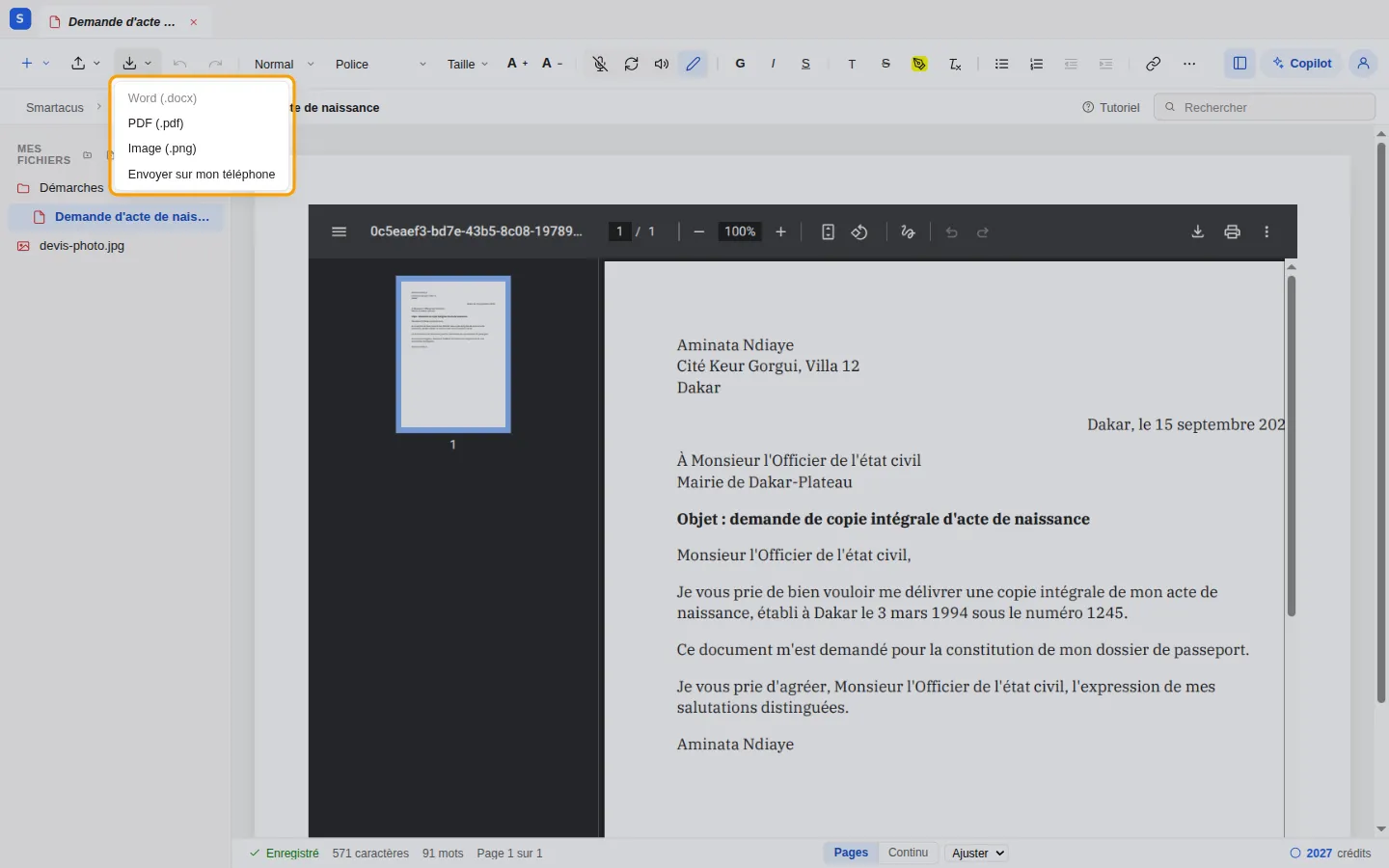
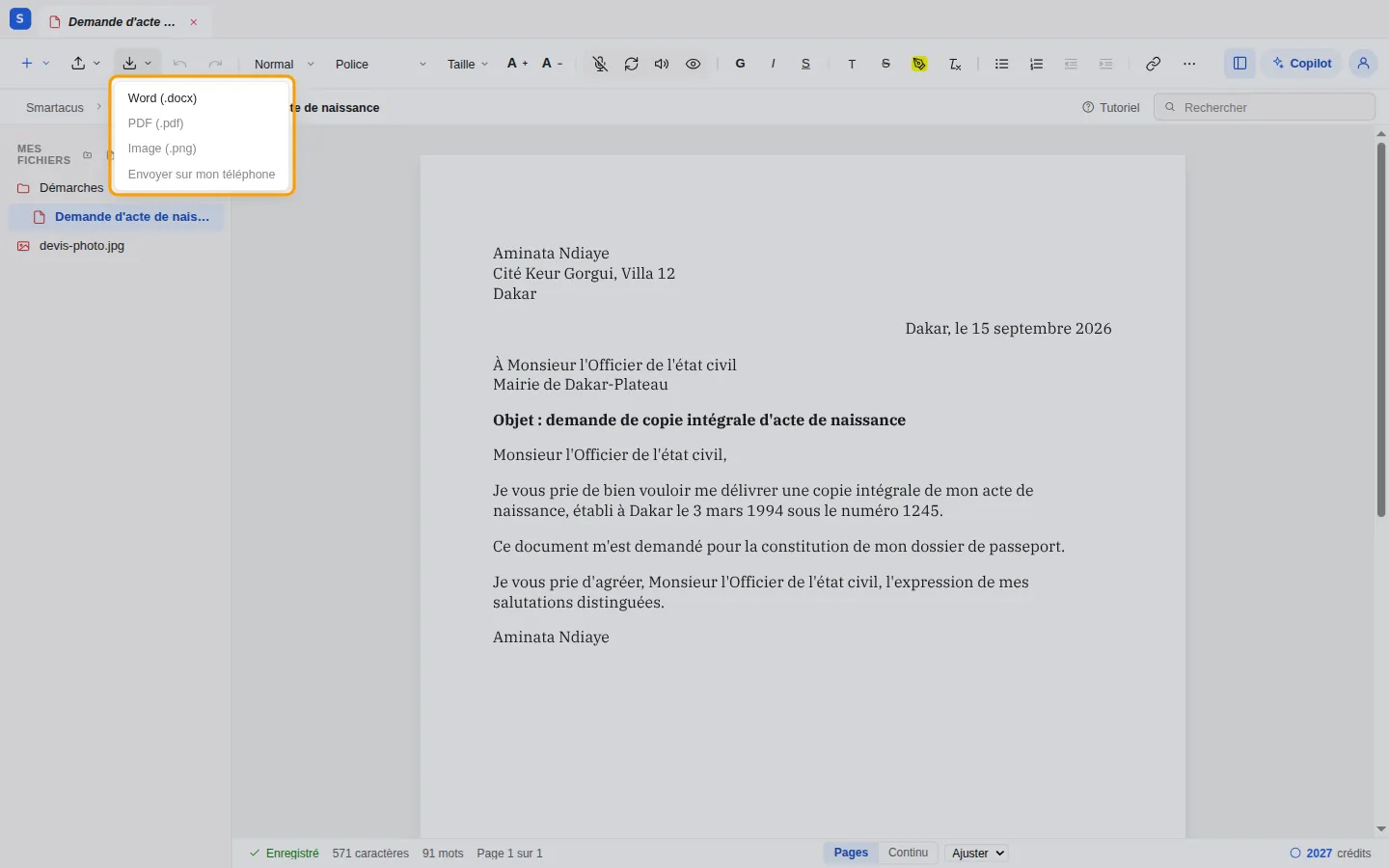
Section titled “5.3 Export”The Exporter (Export) button in the ribbon offers the formats that suit the current mode:
| Mode | Formats | Credits |
|---|---|---|
| Aperçu (Preview) | PDF (.pdf) and Image (.png), identical to the preview; Envoyer sur mon téléphone (Send to my phone) | free |
| Modifier (Edit) | Word (.docx), to continue in a word processor | a small fixed amount |
A greyed-out format isn’t available in the current mode: hover over it to see which mode to switch to.
Sending to your phone
Section titled “Sending to your phone”To read or pass on the document from your phone, switch to Aperçu mode, open Exporter and choose Envoyer sur mon téléphone:
- A QR code appears.
- Scan it with the phone’s camera: a page shows the document’s name.
- Tap Télécharger (Download), or Partager… (Share) to send it by WhatsApp, e-mail or to another service.
A document created in the editor goes as a PDF; an imported scan or PDF goes as it is. No login is needed on the phone.