1. Getting to know the editor
Open the editor in Chrome to follow this tour.
1.1 Screen tour
Section titled “1.1 Screen tour”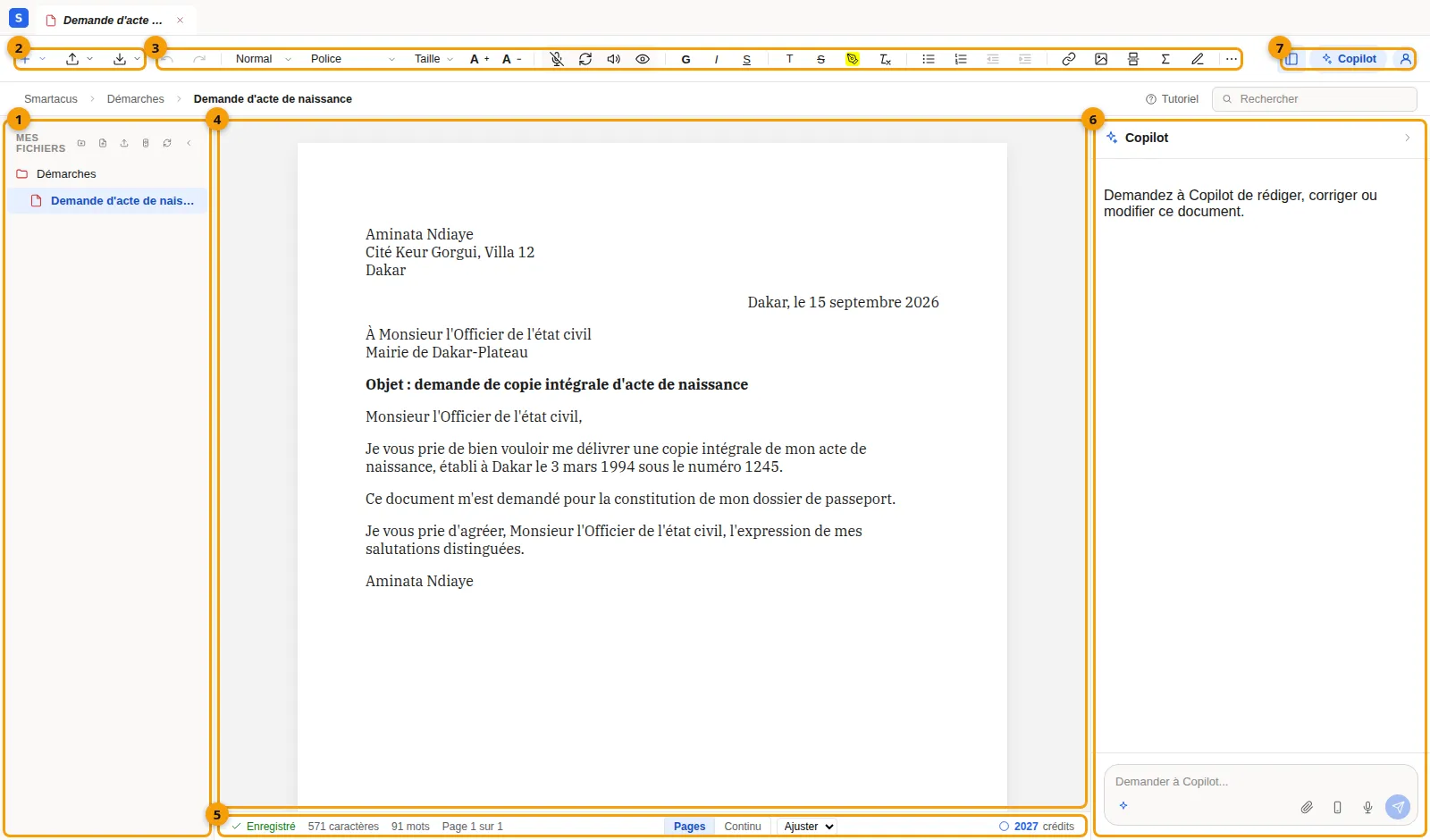
- Mes fichiers (My files): your folders and documents. The small buttons at the top create a folder or a document, import a file, refresh the list or collapse the panel.
- Nouveau, Importer, Exporter (New, Import, Export): create a document, import one (PDF, scan, photo), or download the one that is open. These three buttons show only their icon: hover over them to see their name.
- The toolbar: undo and redo, heading styles, font and size (with A+ and A− to adjust it step by step), then the voice and AI tools (Dicter — Dictate, Régénérer — Regenerate, Lire à voix haute — Read aloud, Aperçu — Preview), formatting (including Effacer la mise en forme — Clear formatting), lists with their indents, links, images, alignment and tables. When the window is too narrow, a ⋯ button opens the tools that don’t fit on the row.
- The page: your document, which you edit directly as in a word processor.
- The status bar: the save status, the number of characters and words, and your credit balance.
- Copilot: the assistant that writes and edits the open document (see part 3).
- The panels: show or hide Mes fichiers, Copilot and Mon compte (My account).
Above the page, the breadcrumb (Smartacus › Démarches › …) shows where the document is, and the Rechercher (Search) field filters Mes fichiers by name, including inside collapsed folders.
1.2 Folders and documents
Section titled “1.2 Folders and documents”- Click Nouveau dossier (New folder) in Mes fichiers, type its name and press Enter.
- Select that folder, then click Nouveau fichier (New file): name the document, and it opens straight away in the editor.
- Hover over a document to show its Télécharger (Download), Renommer (Rename) and Supprimer (Delete) buttons.
The Nouveau menu in the ribbon offers the same choices, and you can also drag and drop a document into another folder.
1.3 Pages and zoom
Section titled “1.3 Pages and zoom”The page is shown as sheets of A4 paper, as it will print. In the status bar:
- Pages / Continu switches between separate sheets and one continuous strip of text (phones open in Continu);
- the zoom menu, whose Ajuster (Fit) choice fits the sheet to the width of the screen;
- the page counter (Page 1 sur 3) follows your position.
Tables break between rows and paragraphs between lines, so a row is never cut across two sheets.
1.4 Tables
Section titled “1.4 Tables”Click Tableau (Table) in the toolbar and slide over the grid to pick the number of rows and columns. Once the cursor is in a table, the same button’s menu offers:
- drag a column edge to resize the column, or a row’s bottom edge to change its height; the table always stays within the page;
- select several cells and choose Fusionner les cellules (Merge cells), or click inside a merged cell and choose Scinder la cellule (Split cell);
- Ligne d’en-tête (Header row) turns the first row into a header (bold, shaded);
- Égaliser les colonnes (Even columns) gives every column the same width;
- Hauteur des lignes : automatique (Row height: automatic) removes the heights you set by dragging.
Column widths and row heights carry over to the PDF and Word exports.
1.5 Formulas
Section titled “1.5 Formulas”Click Σ to type a formula in LaTeX (for example x = \frac{-b}{2a}); it
appears typeset in the text. To change it, select it then press Enter or
double-click.
You can also paste formulas: from a web page (Wikipedia, KaTeX or MathML
formulas) or as text between dollar signs ($E = mc^2$) they become editable
formulas. When you copy a formula, other applications receive its LaTeX
text, and MathML where they accept it.