4. Importing and extracting a document
You can start from an existing document: a PDF received by e-mail, a scanned letter, or a photo of an invoice taken with a phone. The editor extracts its text, which you then edit like any other document.
4.1 Import
Section titled “4.1 Import”- Click Importer (Import) in the ribbon, then Depuis l’ordinateur (From the computer), or the Importer button in Mes fichiers.
- Choose the file: PDF, Word (.docx), image (JPG, PNG, TIFF, BMP, WebP) or text (HTML, TXT).
- The document opens as is, in its original view (a Word file opens straight in the editor).
The file is stored in the folder selected in Mes fichiers.
A Word document
Section titled “A Word document”A .docx file is converted instantly and for free: headings, lists, tables (with their column widths), bold and italics are kept, and you edit it right away. Older .doc files aren’t supported: save them as .docx in Word first.
With your phone
Section titled “With your phone”Got the document on paper? Photograph it with your phone, without logging in on it: the pages go straight into the editor on your computer.
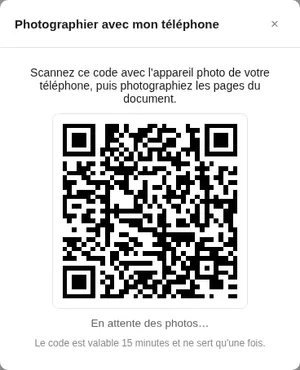
- Click the Importer (Import) button in the ribbon, then Avec mon téléphone (photo) (With my phone), or the phone icon in Mes fichiers. A QR code appears.
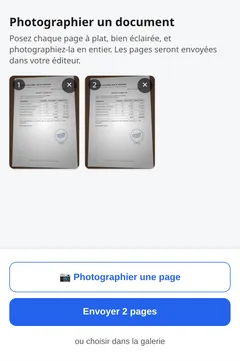
- Scan it with your phone’s camera: a « Photographier un document » (Photograph a document) page opens.
- Tap Photographier une page (Photograph a page) for each page (20 at most), or pick photos from the gallery. Remove a bad page with ×.
- Tap Envoyer (Send): on the computer, the document opens by itself.
Several pages make one document. It is then extracted like a scan (section 4.2).
4.2 Extract the text (the Modifier button)
Section titled “4.2 Extract the text (the Modifier button)”Click Modifier (Edit — the pencil): the editor turns the document into editable text, with its headings, lists and tables. What happens depends on the document.
A PDF that already contains text
Section titled “A PDF that already contains text”This is the case for PDFs created on a computer (invoices, letters generated by software). The text is extracted instantly and for free.
A scanned document
Section titled “A scanned document”A scan is only an image: artificial intelligence reads each page. Before it starts, the editor shows the number of pages and the price in credits: click Extraire (Extract) to start reading, or Annuler (Cancel), in which case nothing is charged. Progress is shown at the bottom of the screen (Extraction en cours… page 1/2). You can keep working elsewhere or close the page: extraction carries on, and the text will be waiting when you come back.
A photo taken with a phone
Section titled “A photo taken with a phone”A photo is imported and extracted like a scan, tables included.
For a good result:
- photograph the sheet flat, well lit, with no shadow or glare;
- frame the whole page, and keep the phone’s full resolution (avoid photos compressed by a messaging app);
- for a multi-page document, gather the pages into a single PDF before importing it, or import each page separately.
💳 Extracting a scan or a photo is charged per page, whatever text it holds: a photo counts as one page, a scanned PDF as its number of pages. The price is shown before it starts, your balance must cover it, and it is only deducted if the extraction succeeds. It is paid once: reopening the document afterwards is free. A document can have up to 50 pages.
4.3 Check and correct
Section titled “4.3 Check and correct”To compare with the original document, switch to Aperçu (Preview) and choose the Original view in the status bar (see part 5). Then correct the text with the keyboard, by dictation (part 2) or with Copilot (part 3).