7. From paper to WhatsApp
You have a paper document (a quote, an invoice, a letter) and your phone. With no scanner and no cable, you bring it into the editor, correct it, then send it back to your phone to share it.
7.1 Bring the paper in
Section titled “7.1 Bring the paper in”- On the computer, click Importer (Import), then Avec mon téléphone (With my phone): a QR code appears.
- Scan it with your phone’s camera. The Photographier un document (Photograph a document) page opens.
- Tap Photographier une page (Photograph a page), lay the document flat, well lit, and capture all of it. You can also choisir dans la galerie (choose from the gallery), and add several pages.
- Tap Envoyer (Send): the page opens in the editor, on the computer.
7.2 Extract the text and correct it
Section titled “7.2 Extract the text and correct it”- Click Modifier (Edit). The editor shows the page count and the price: click Extraire (Extract).
- If the document carries a stamp, a signature or a logo, the editor offers to keep them as images, for an extra charge. In the video, we answer Non merci (No thanks): they are then replaced by a note in square brackets.
- The text is editable, table included. In the video, the quote’s validity goes from 30 to 15 days.
7.3 Send the document back to the phone
Section titled “7.3 Send the document back to the phone”- Switch to Aperçu (Preview), then click Exporter (Export).
- Choose Envoyer sur mon téléphone (Send to my phone): a new QR code appears, valid for 15 minutes.
- Scan it with your phone: the Votre document (Your document) page opens.
- Tap Télécharger (Download) to keep the PDF, or Partager… (Share…) to send it right away via WhatsApp, e-mail or another app.
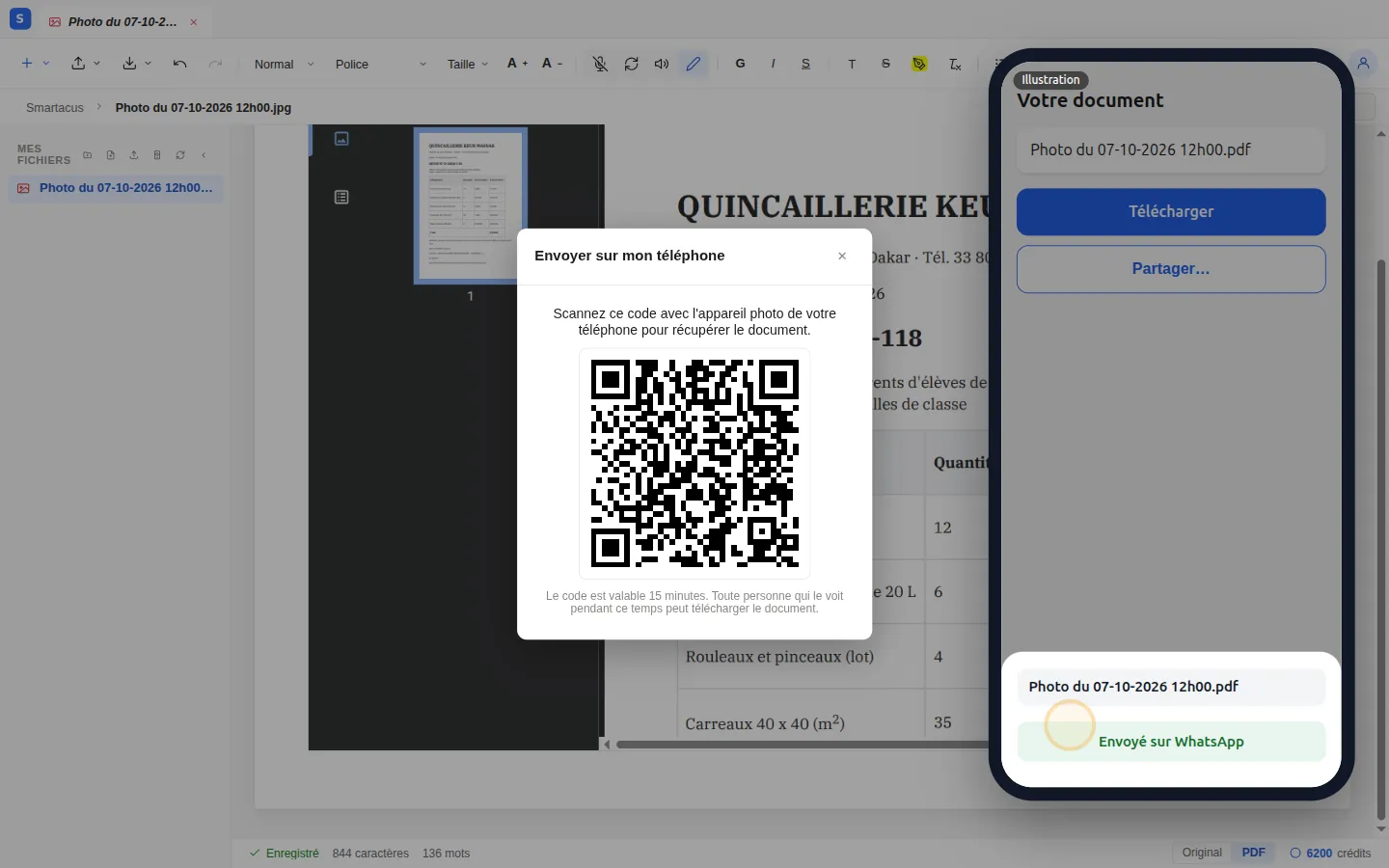
The Partager… button appears on phones whose browser can share files. If it doesn’t, download the document, then share it from your files.
To go further: importing and extracting and preview and export cover each step in detail.